How to manage data
Updated
There are two ways to access your data in Goat Maps, by tapping on the map to select an item, or using the My Data tab. This article will be focusing on the My Data tab.
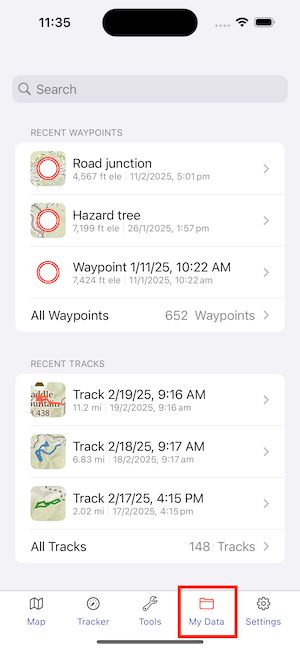
The most recently created 3 items of each type, Waypoint, Route, Track and Folder, will show on the My Data tab. To see older items select "All type", or use the search box.
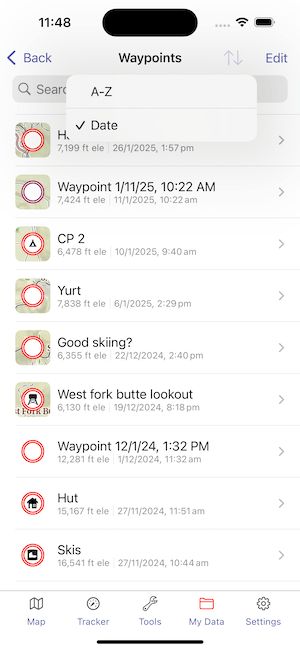
In the All view for each type there is a search box for items of that type, and an option to change the sort order.
Renaming items
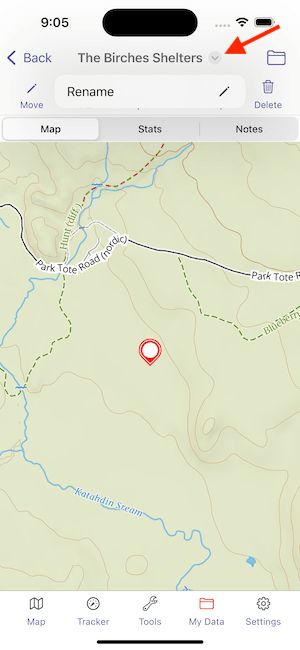
To rename an item, select the item, then press the down arrow next to the name, and select "Rename"
Deleting items
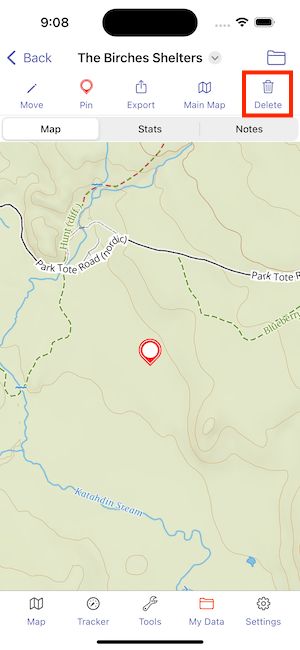
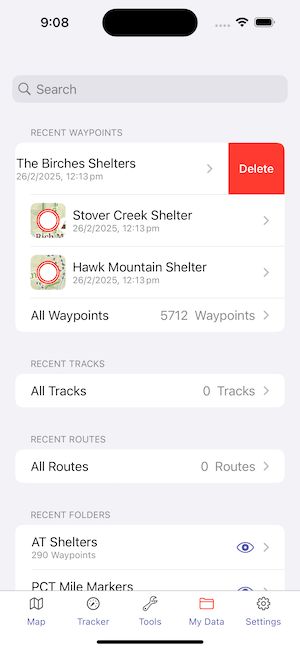
There are 2 ways to delete an item. Either swipe to delete in the My Data list, or select the item then press the Delete button.
Using Folders
Folders provide a way to organize data, grouping it together, and a way to hide data on the map.
Creating Folders
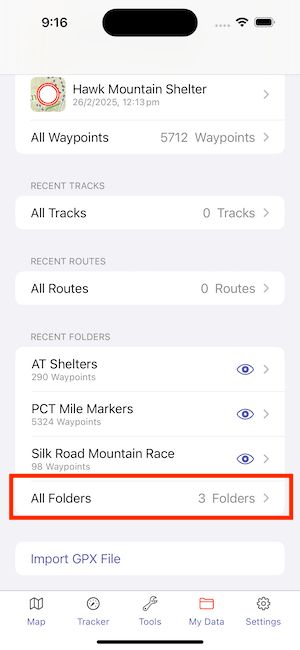
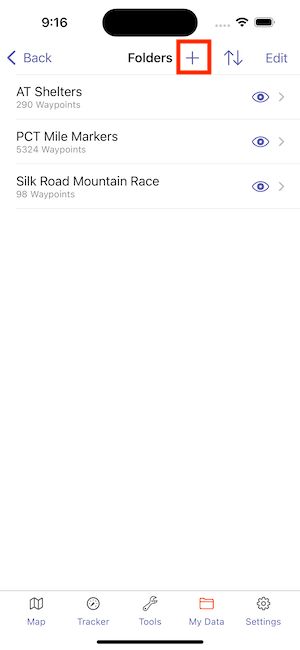
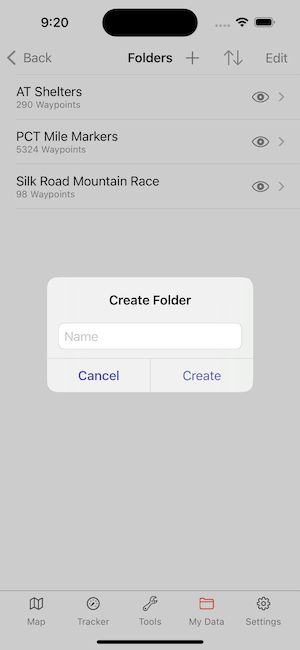
To create a folder, select "All Folders" in the My Data tab, then tap the + button in the top bar.
Adding items to folders
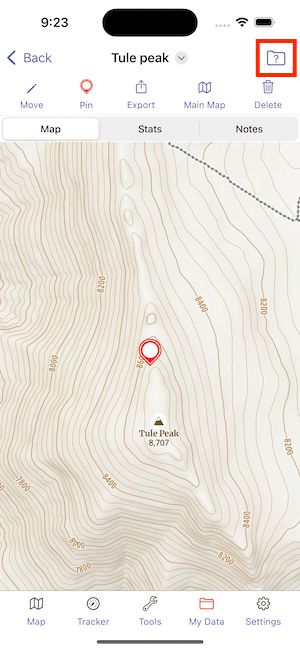
To add an item to a folder, select the item, tap the folder button in the upper right, then choose the new folder.
Controlling Folder Visibility
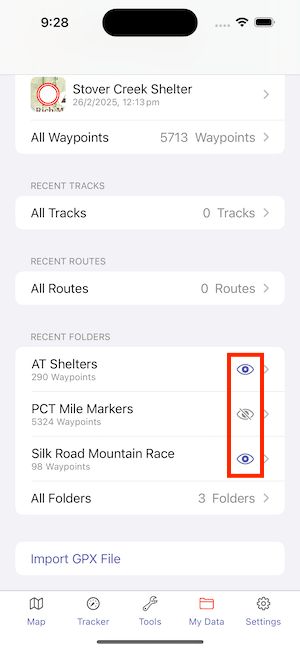
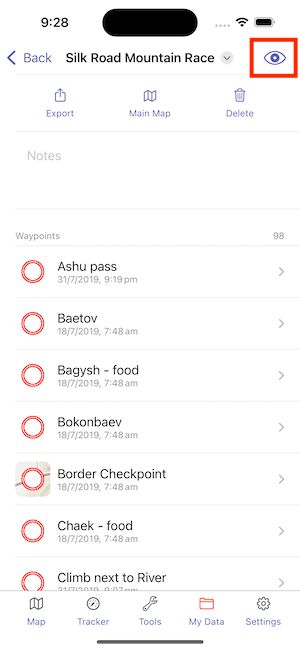
Each folder has a visibility control. Turn off visibility for a folder will cause all items in the folder to not be shown on the map. Folder visibility can be controlled in 2 places, either from the Folder list in the My Data tab, or by selecting a folder in My Data. Tap the visibility control to toggle visibility.