Downloading Maps
Updated
Maps in Goat Maps are divided into 2 categories, basemaps and overlays. There are separate methods for downloading the two types of maps.
Basemaps
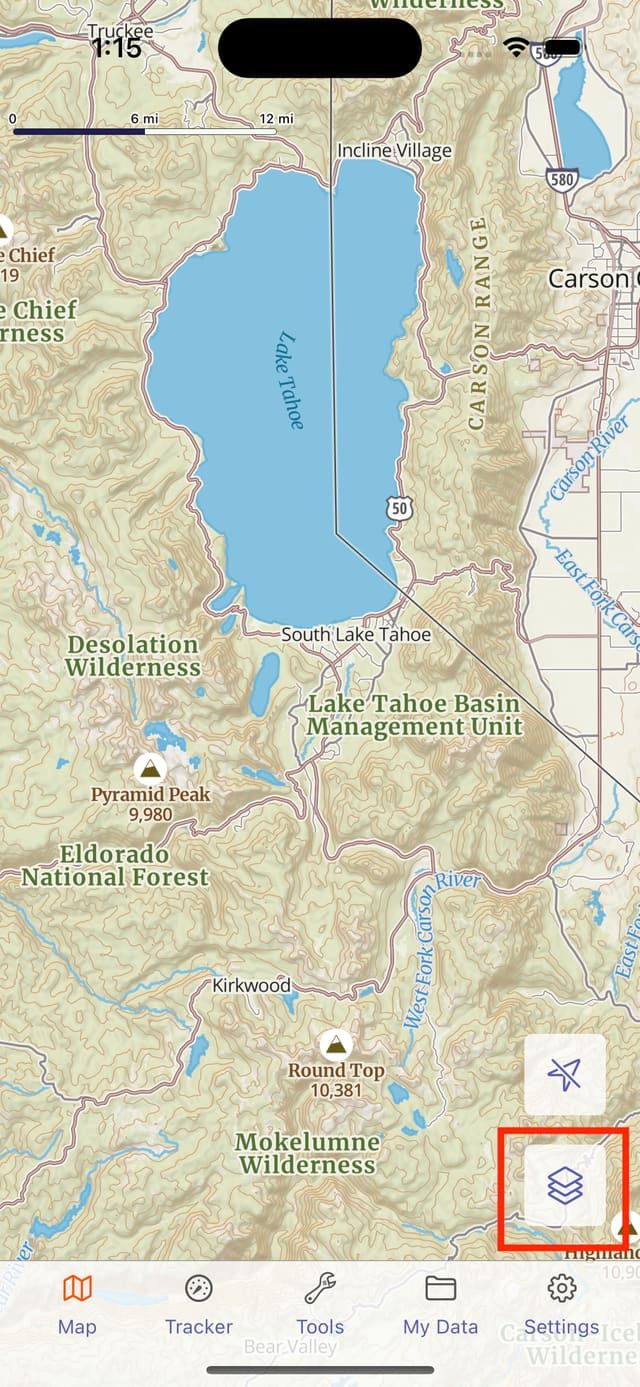
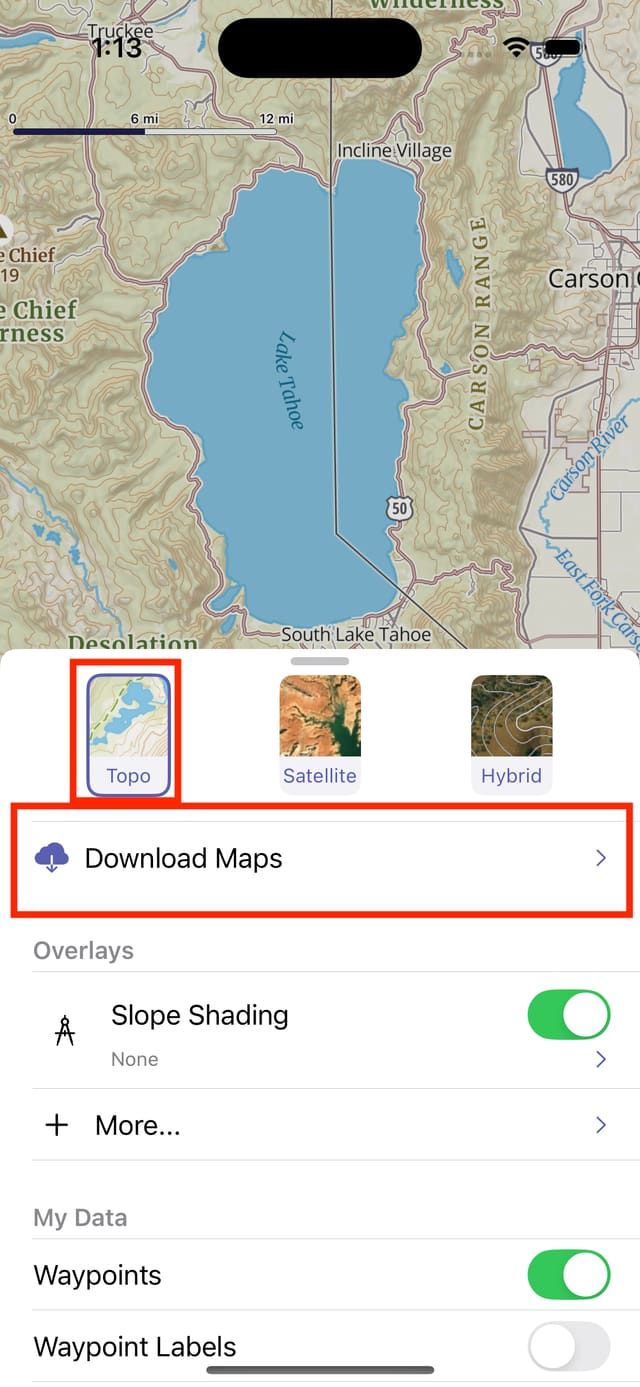
Basemaps can be downloaded and managed from the Download Maps screen. To get to the Download Maps screen open the Map Menu by tapping the Map Menu button, select the basemap you want to manage, then tap Download Maps.
Downloading Basemaps
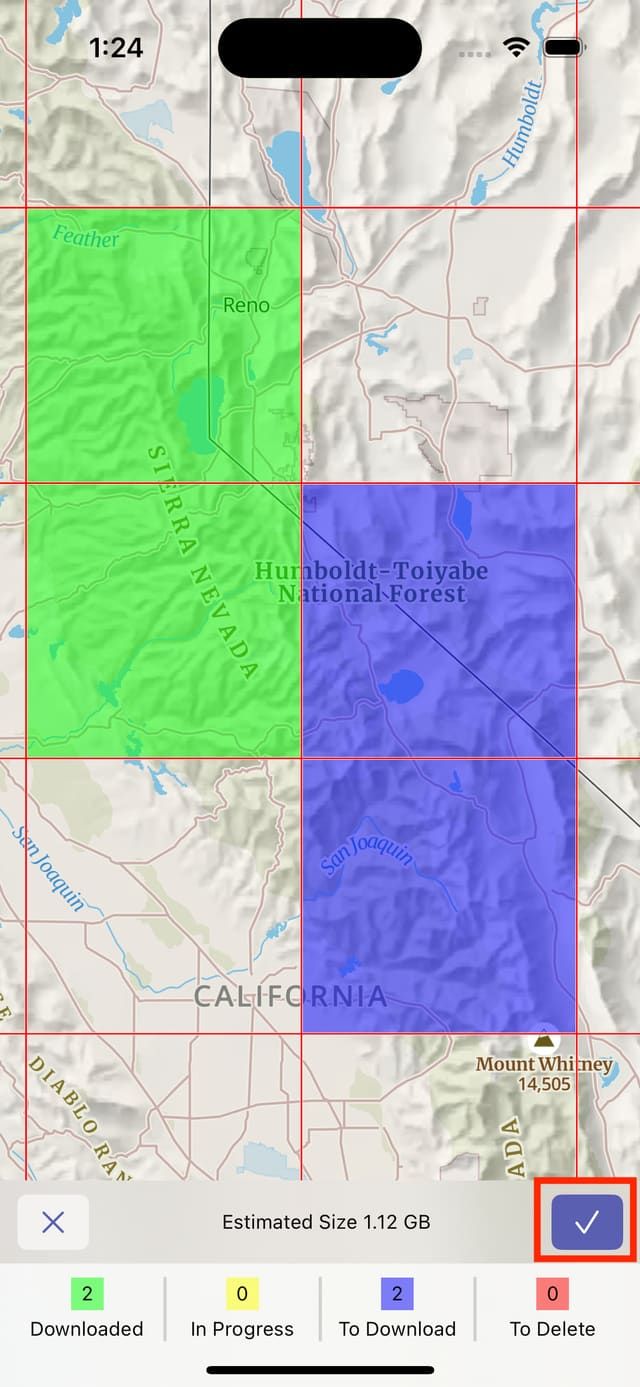
To download a square tap it on the map, the square will turn blue. After selecting all squares you would like to download tap the ✔️ button to start the download. In most cases maps will download in the background. When maps finish downloading, you will receive a notification.
Checking Download Status
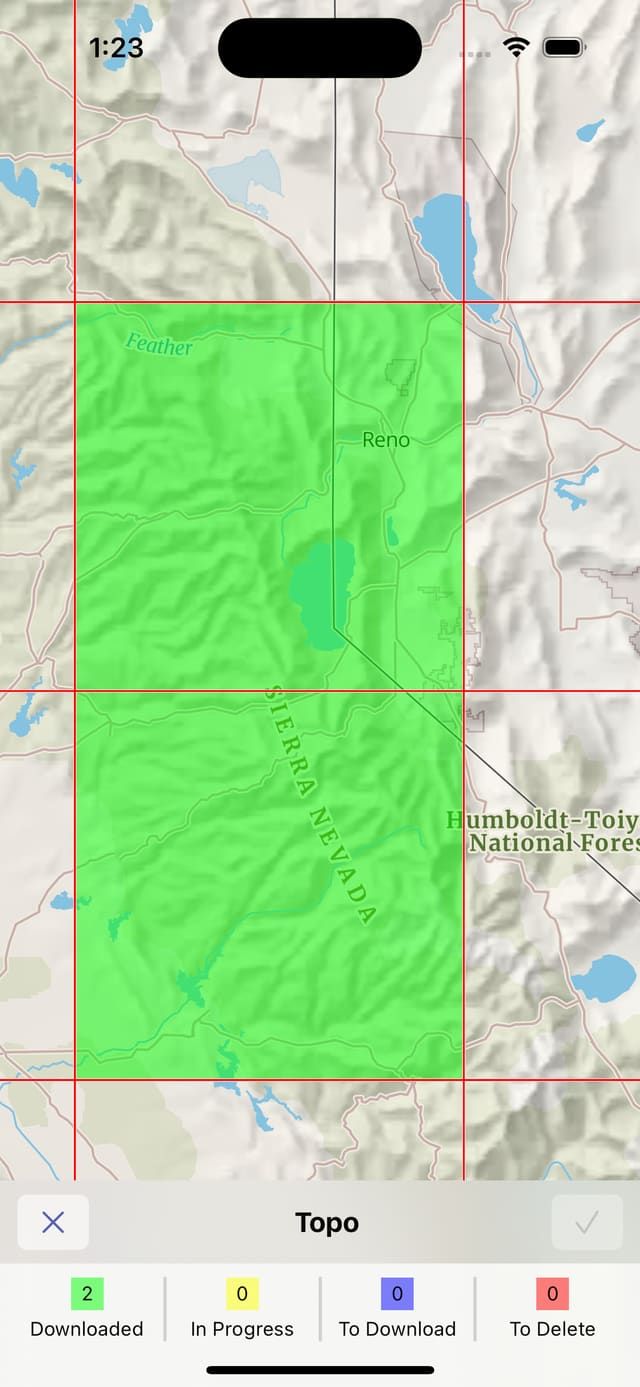
Maps squares that are downloaded will be marked in green.
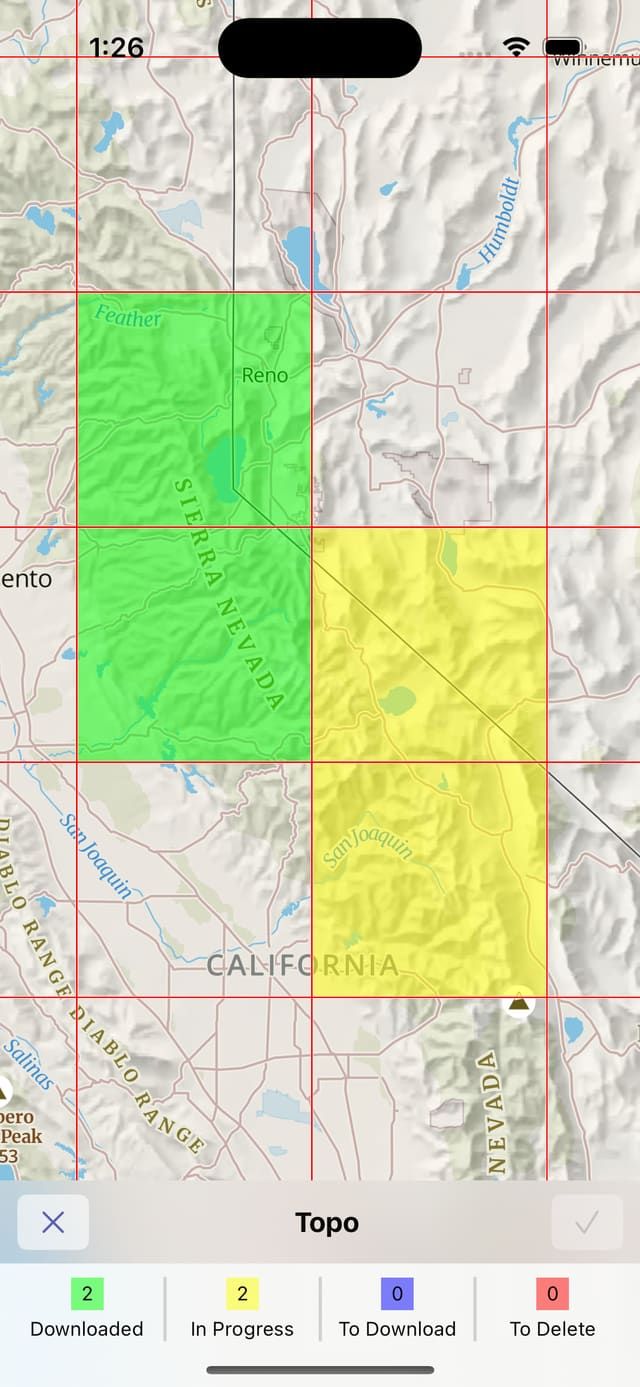
Squares that are currently downloading are marked in yellow.
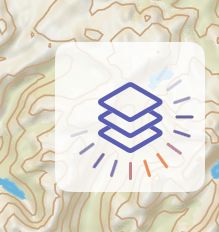
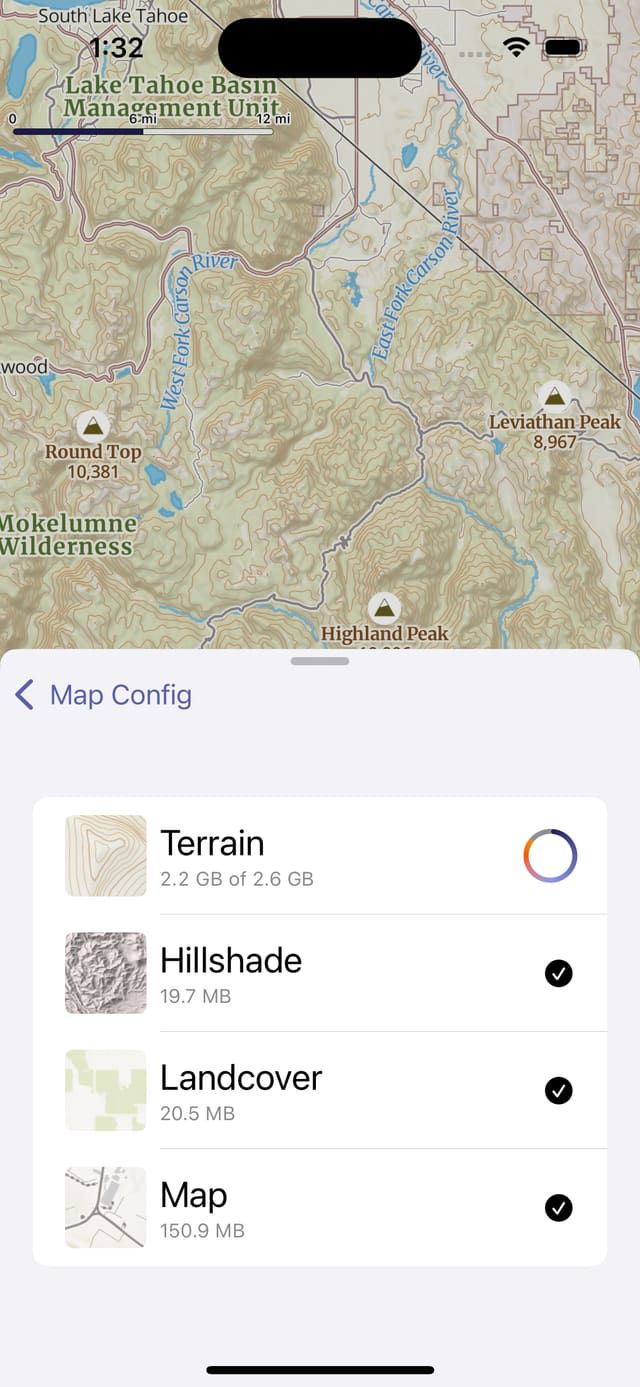
When a download is in progress the Map Menu button will show an activity indicator, and an additional item will show in the Map Menu: "Current Downloads".
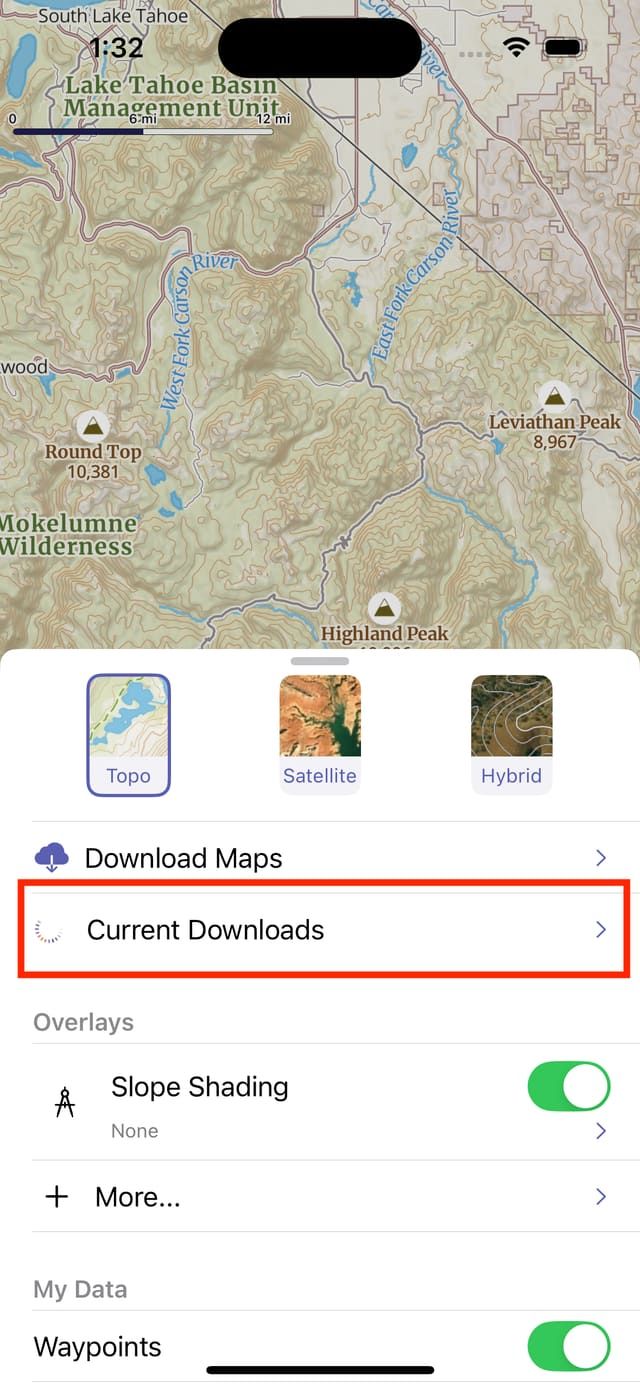
Selecting Current Downloads will show the download progress.
Deleting Basemaps
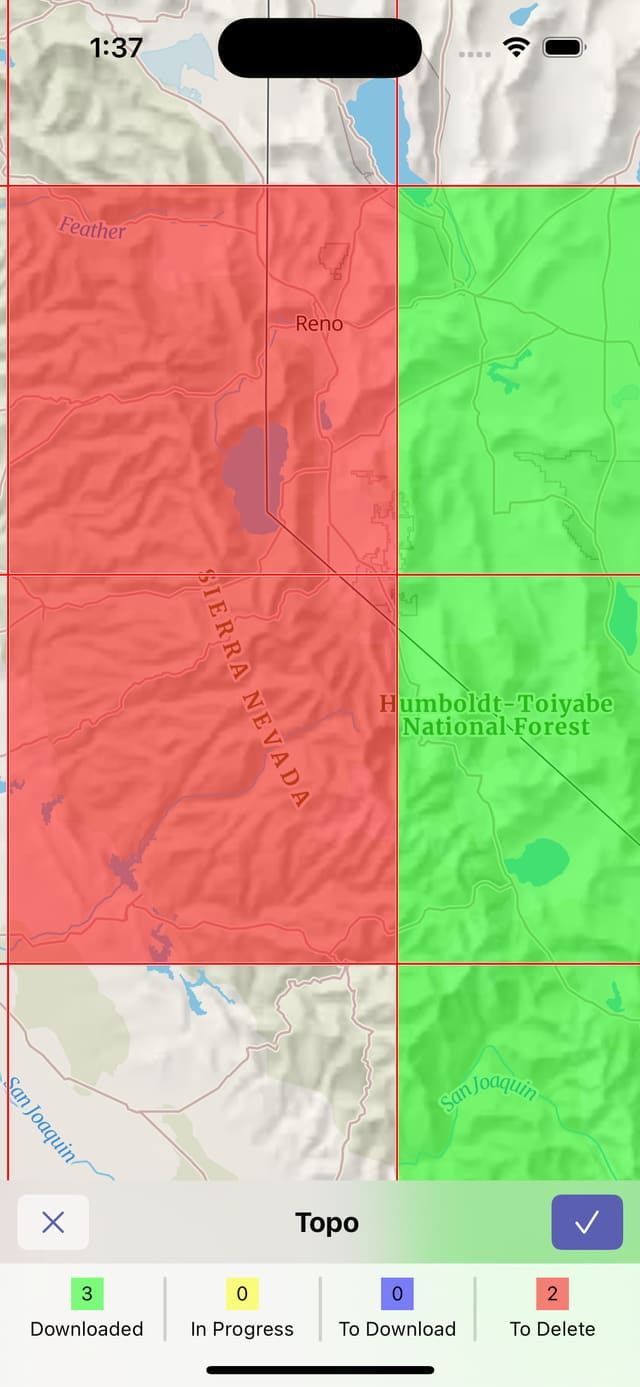
Downloaded basemap squares can be deleted from the Download Maps screen. Select the downloaded (green) squares you wish to delete, which will turn them red. Then click the ✔️ button to delete the maps.
Overlays
Overlays are maps that add additional information to a basemap, examples include forest fire boundaries, road use restrictions, and land ownership information.
Overlays are not downloaded square by square like basemaps. They are generally a small enough download that the whole map is downloaded at once. Some overlays are online only and not available for download.
Downloading Overlays
Overlays that are available for download have a cloud icon next to the name.
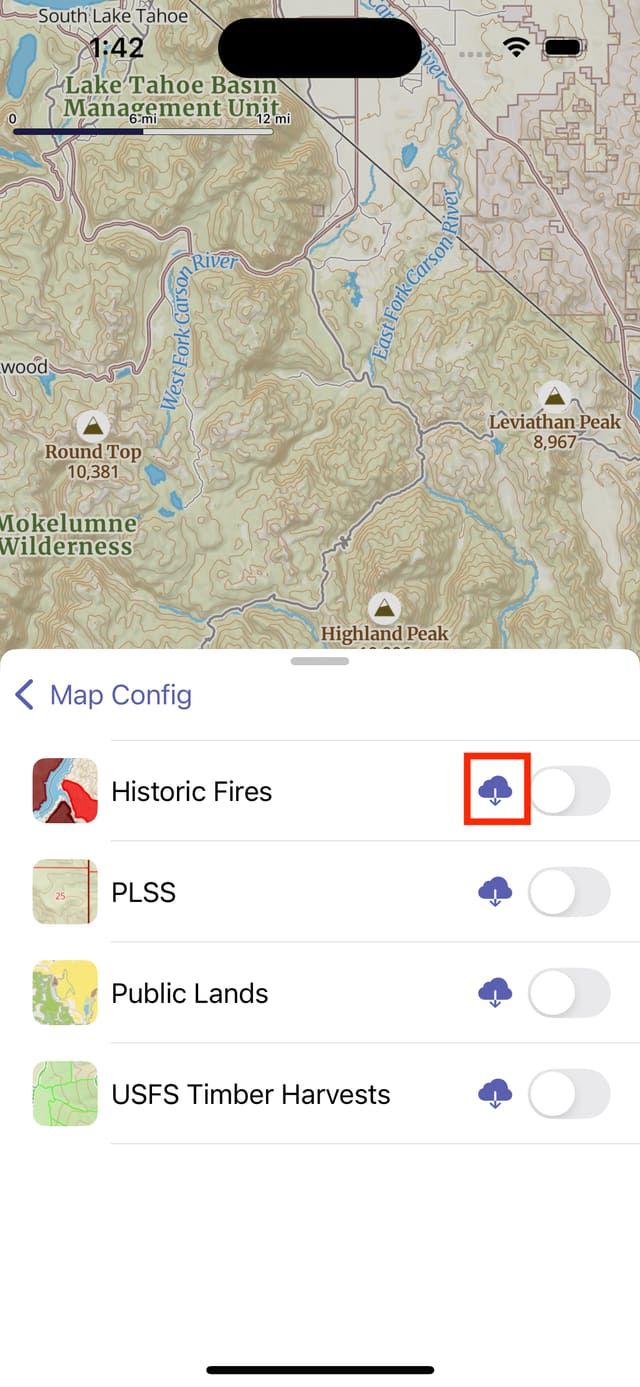
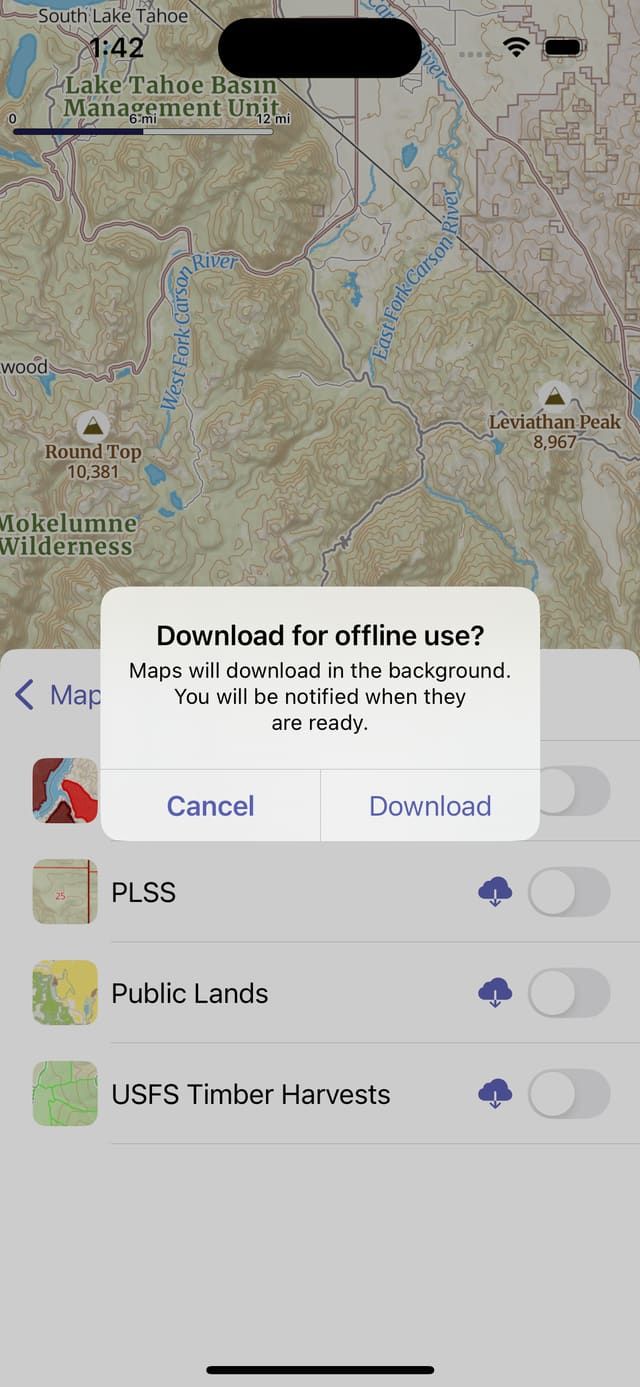
To download an overlay tap the cloud icon. After clicking the download button, you will be presented with a dialog to confirm downloading.
Overlays that are currently downloading will have an activity indicator around the cloud icon.
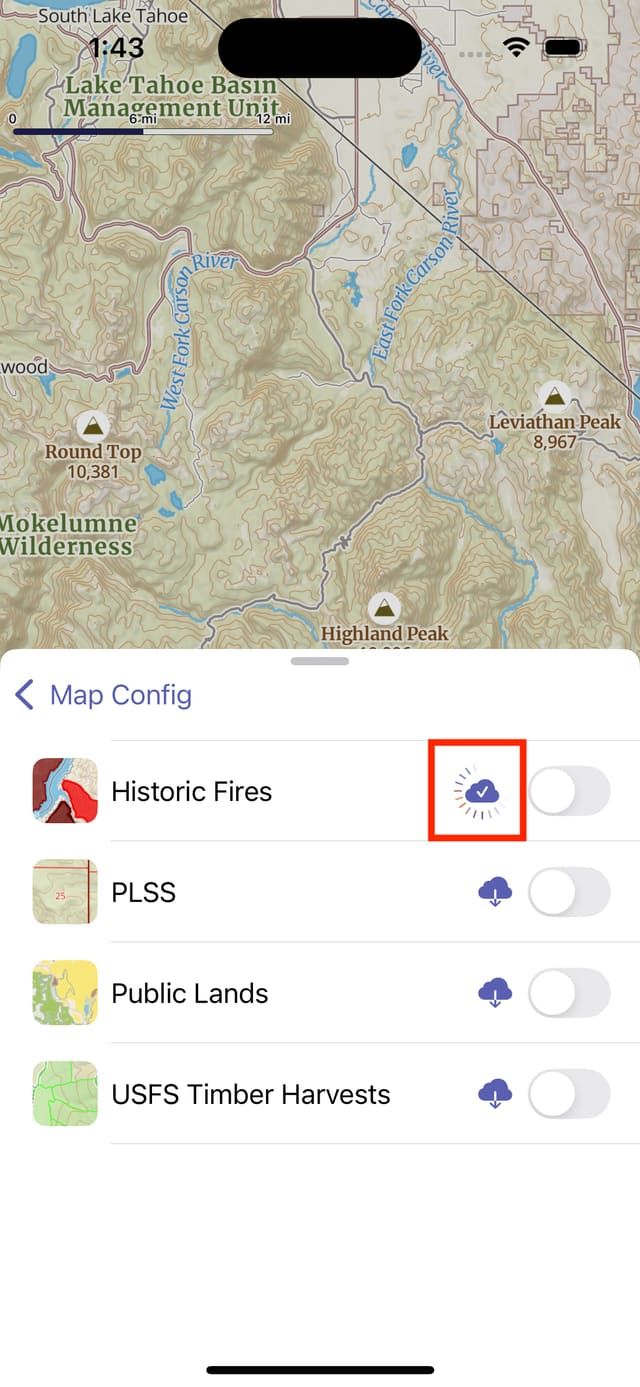
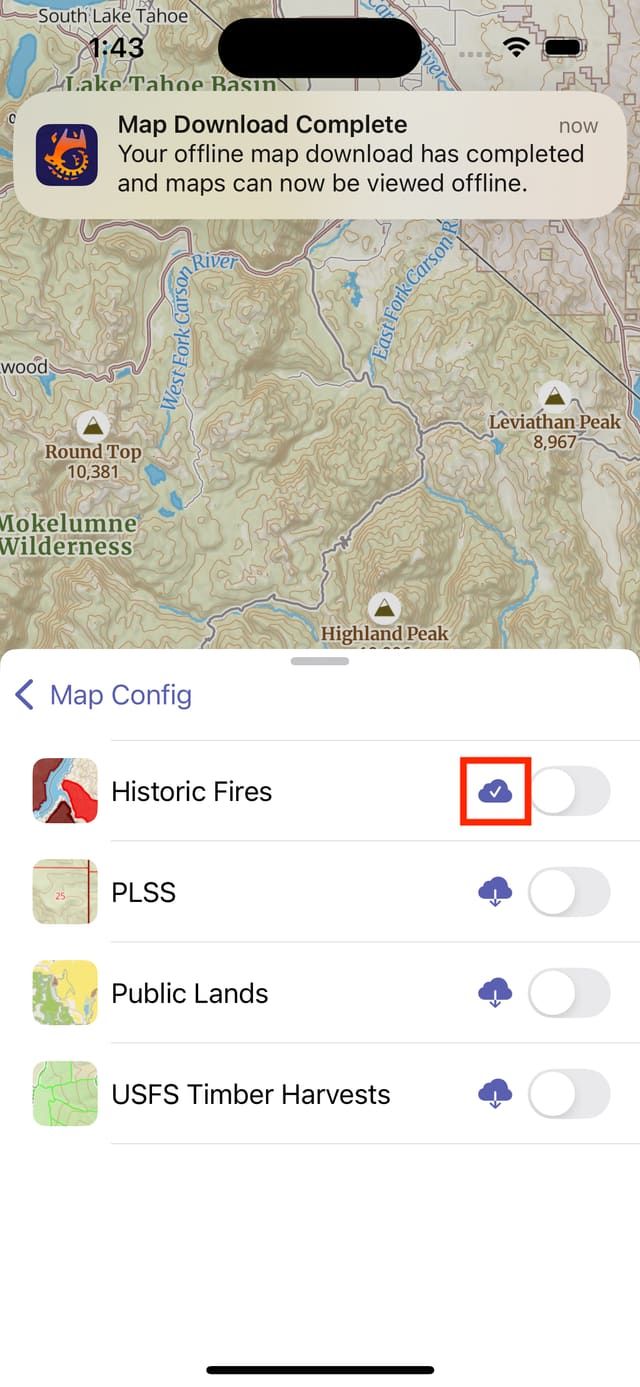
When an overlay is finished downloading, a notification will be presented, and the cloud icon will have a check mark.
Deleting Overlay Downloads
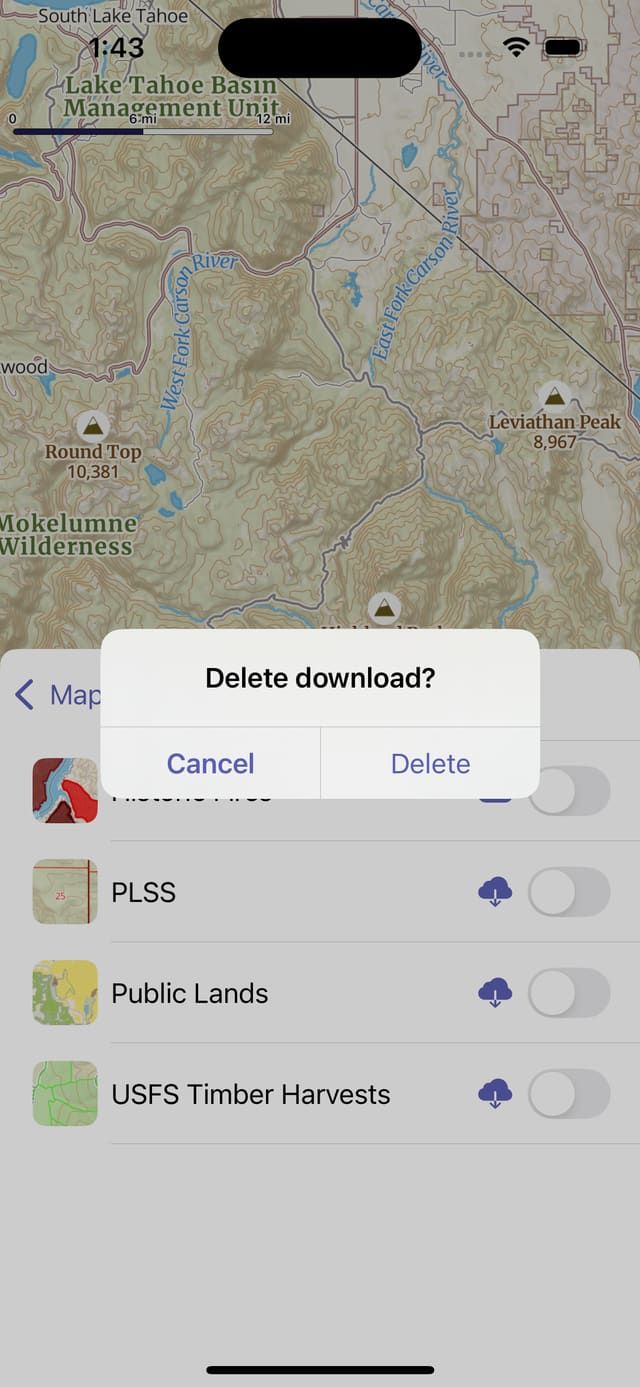
To delete a downloaded overlay, tap its cloud button. This will present an alert to confirm before deleting.